
Building in-app navigation with JitBlox has become easier: file-based routing explained
A web app can’t exist without in-app navigation: an app is made up of multiple pages, and users need to be able to move smoothly between them. Making navigation easy to implement (often called “routing”) is therefore an essential part of building web applications. Every modern web framework offers one or more solutions to simplify this process for developers.
As we work on expanding JitBlox from targeting only Angular to also targeting React and Vue, we can’t ignore the different routing solutions and trends that come with them. One important trend is file-based routing: a method where the structure of your files and folders directly determines the routes in your application. This simplifies managing navigation within your web app, and we felt it made perfect sense to adopt the principles behind file-based routing in JitBlox.
If you're not already familiar with JitBlox, it's a visual web app builder that lets you build working web apps without coding, leveraging leading UI libraries and front-end frameworks. JitBlox is an easy way for you and your team to quickly build new ideas and start your next web project with solid source code and UI components that developers are already familiar with.
With the release of JitBlox 1.10 today, building navigation into your apps works slightly differently than you might be used to - but it’s clearer, and still completely configuration-free and code-free. The vast majority of apps will continue to work as before, but if your project uses more advanced navigation such as nested routes, you may need to make a few small adjustments.
Below is an up-to-date overview of how to implement navigation in JitBlox, starting with the most basic use-case.
Navigation 101
To make in-app navigation work in JitBlox (or, more generally, in web frameworks like Angular or React), you need two key components:
- A Page Link (often called a Router Link or Link in frameworks).
- A Page Area (often called a Router Outlet or Outlet).
You add a Page Link to your layout to let the user navigate to a specific page within your app. And you should insert a Page Area into your layout (typically in the main layout) at the place where the active page should be rendered.
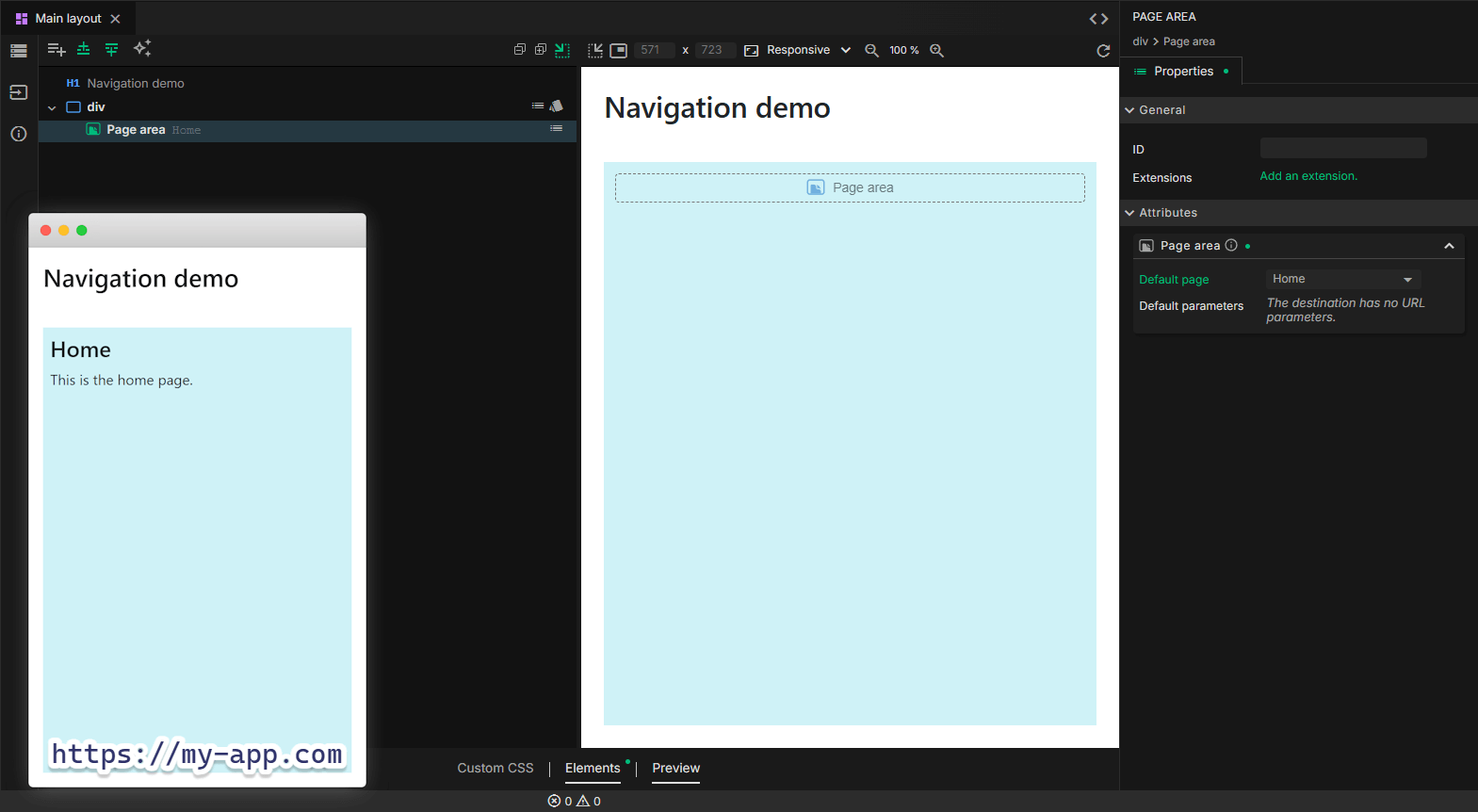
Let’s start with the simplest example: an app with a single “Home” page and a Page Area on the app's main layout (we've given it a blue background for clarity). We configure the Page Area so that it opens the Home page by default. This way, the user immediately sees the home page when he opens the app.
Now let’s add an extra “Support” page to our demo app and extend the basic navigation on the Main Layout with a Page Link to it. When the user navigates to the Support page, it will be opened inside the Page Area.
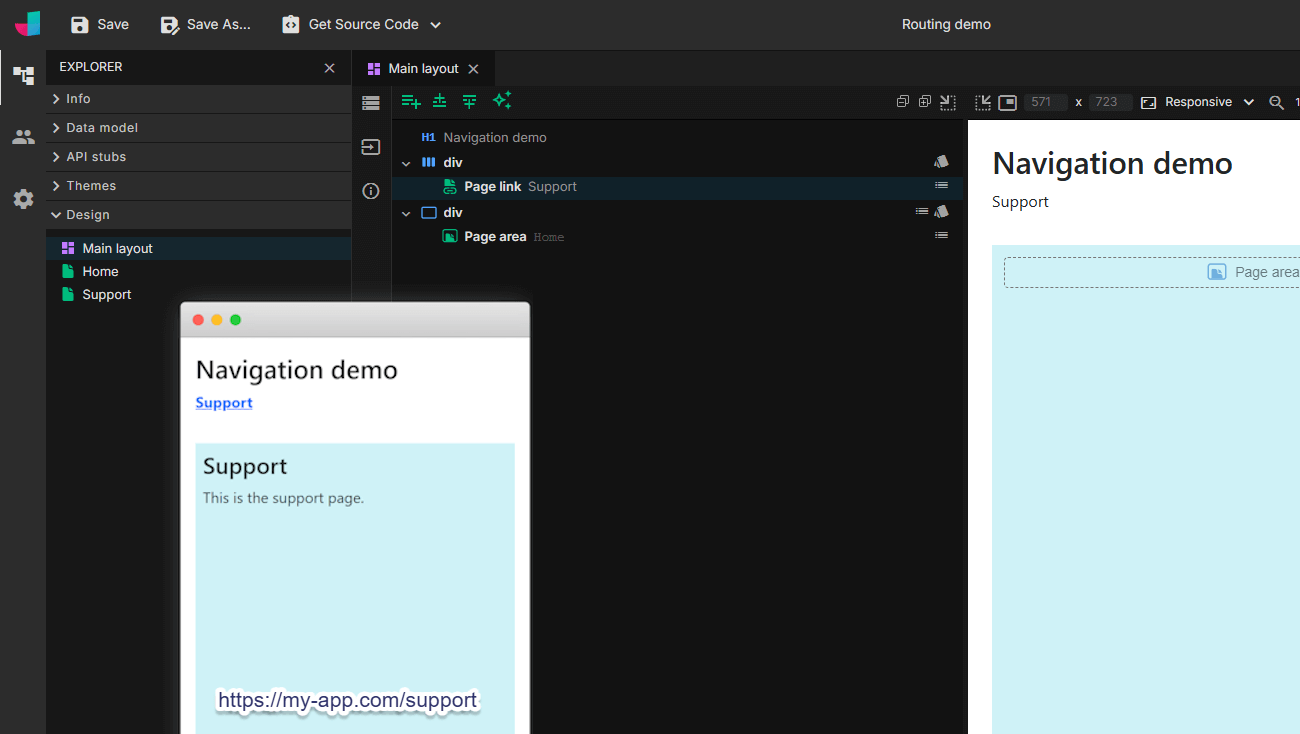
The path in the browser is now /support. JitBlox automatically derived this path from the name of the page.
Where's the route configuration?
If you’re familiar with web frameworks, you might be wondering where you need to define the route configuration. The answer is: there isn’t any. Simply add a Page Area or create a Page Link to a page and JitBlox will generate the appropriate configuration automatically. Read on to learn how to override the navigation path of a page.
File-based routing
In the example above, the path is automatically derived by JitBlox from the page name. Because we haven’t created any folders yet, the path is simply /support. Now let’s create a separate folder for the support section and immediately extend it with an FAQ page.
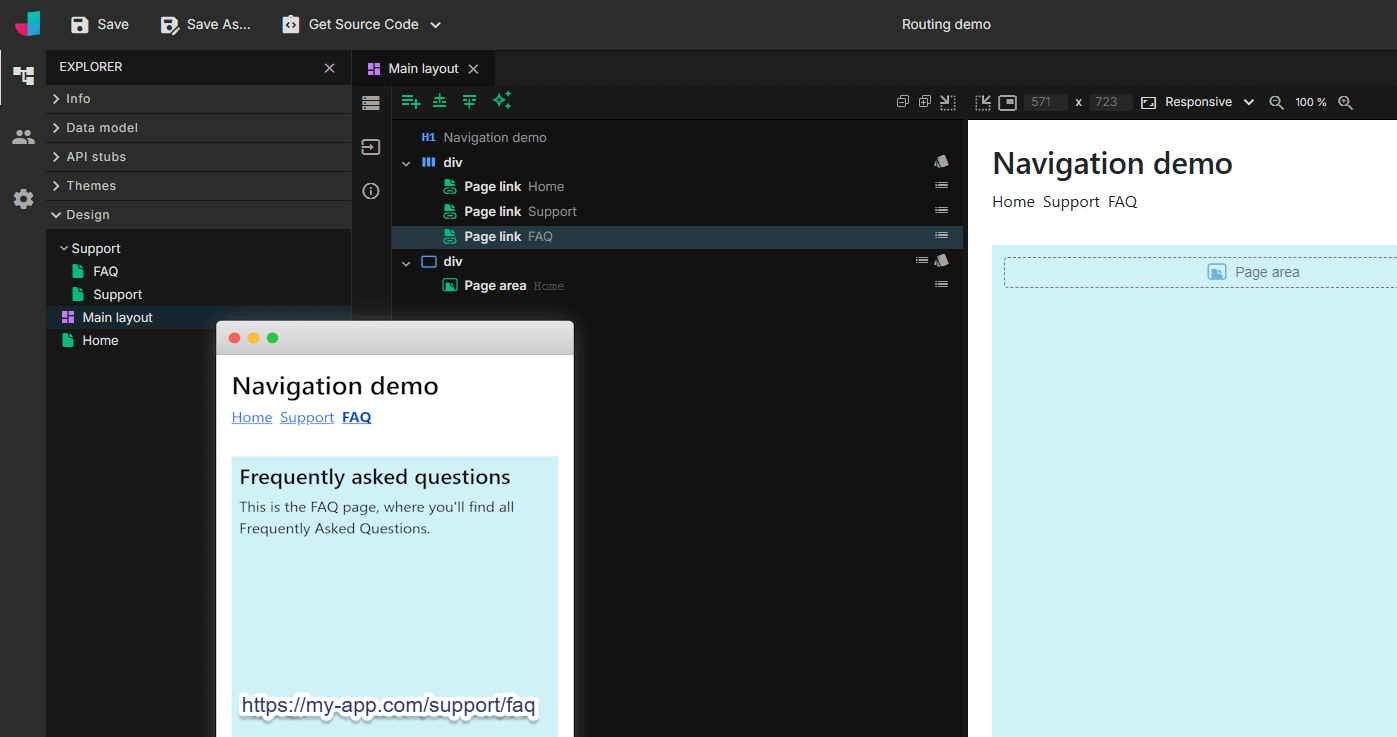
When the user navigates to the new FAQ page, the path becomes /support/faq. This is because the FAQ page lives inside the “Support” folder. The navigation structure therefore follows the folder structure. And what about the path of the Support page itself? It’s not /support/support, as you might expect, but still just /support. That’s because JitBlox automatically treats the Support page as the default page of the folder. JitBlox applies two rules to determine the default page for a folder (both rules are case-insensitive):
- The page name is the same as the folder name.
- The page name is “Index”.
Nested navigation
What if we don’t want to display the FAQ page instead of the Support page, but as part of it? In other words: how do we keep the “Support” title (and any other layout elements) visible while showing the frequently asked questions within the support page? This is where nested navigation comes in.
You can achieve nested navigation by adding an extra Page Area inside the application—in this case, on the Support page itself. That’s all there is to it. JitBlox makes the Support page part of the so-called route tree and ensures that all nested pages are opened within the nested Page Area (we've given this one a green background for clarity).
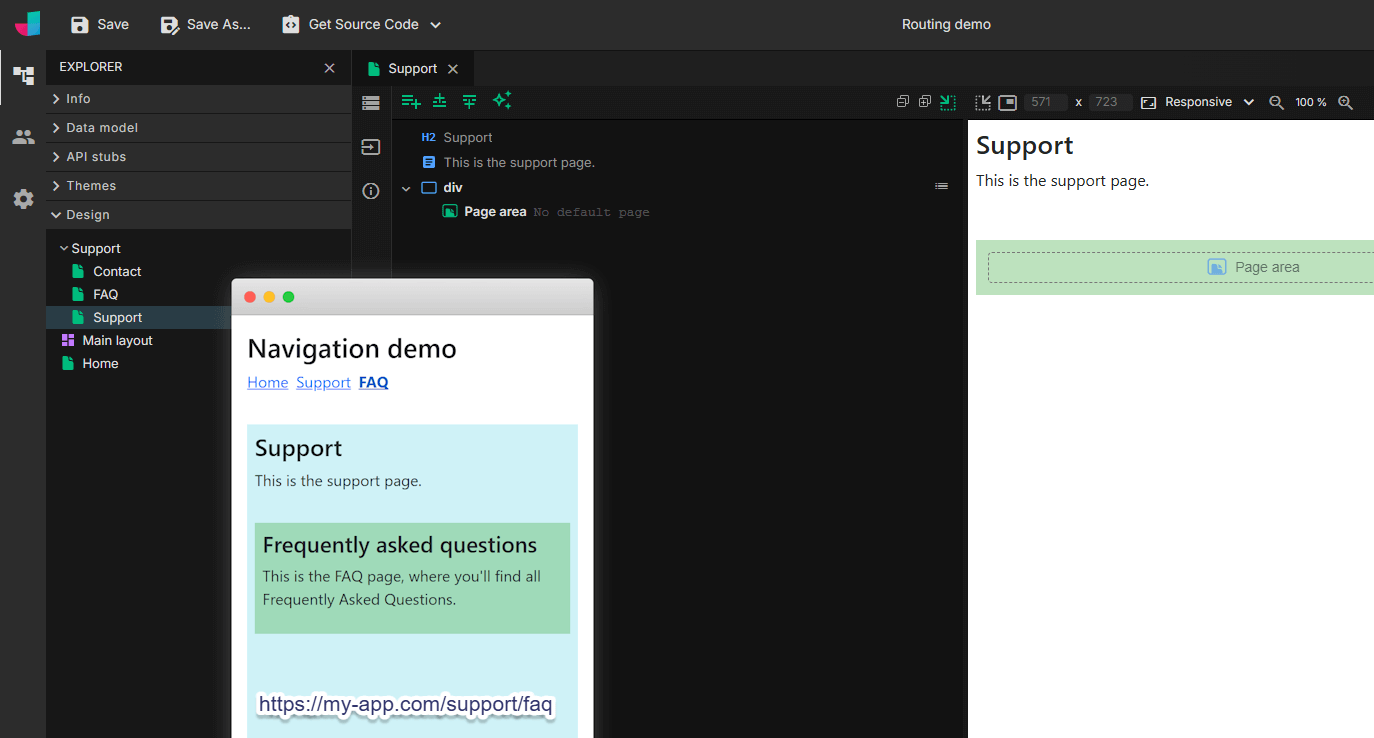
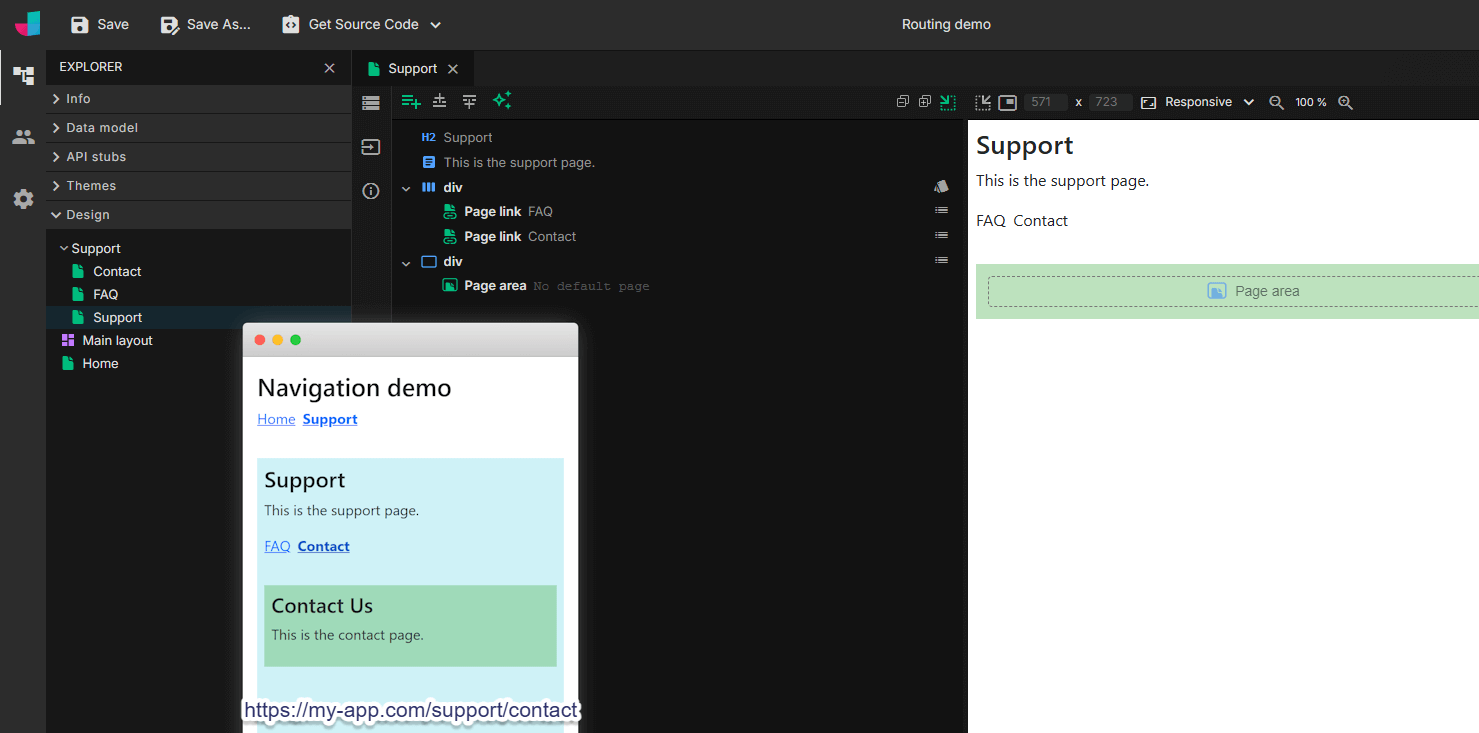
Our top-level navigation may no longer be entirely logical, so let’s now clean up the navigation a bit by moving the FAQ link to the Support page. And while we’re at it, let’s also expand the support section with a Contact page. The final result looks like this:
Overriding navigation paths
What if you want to change the path of the Support page to /help instead of /support, but you’d rather not rename the component itself? You can override the path via the component designer of the Support page. To do this, open the Component Info panel on the left side of the template editor and set the Navigation path:
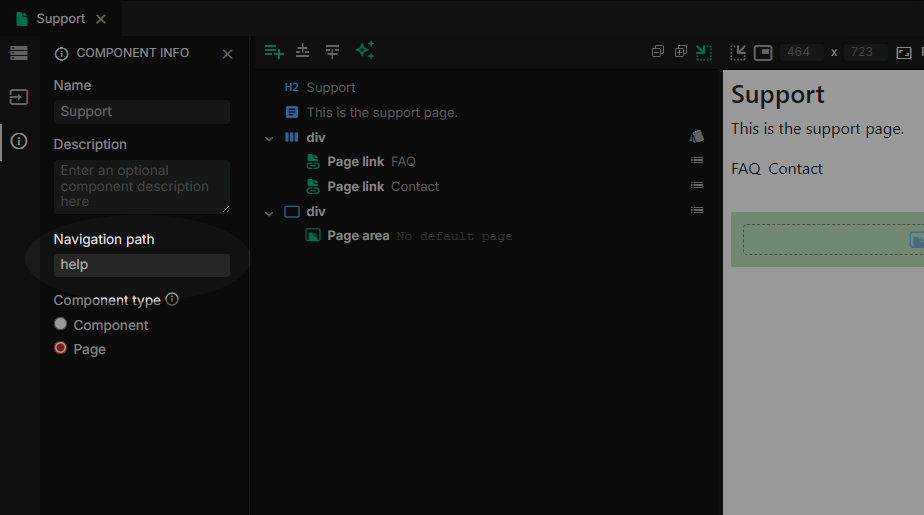
This also updates the paths of any child pages automatically, so /support/faq becomes /help/faq and /support/contact becomes /help/contact.
File-based routing is an important step toward broader framework support and a more consistent development experience across platforms. As JitBlox continues to grow beyond Angular, this new navigation model helps ensure your apps stay simple, structured, and ready for what’s next.
Read next
Tailwind 4.3, New Claude Models, and API Mocking with MSW
Our designer now includes all utilities introduced in Tailwind CSS 4.2 and 4.3, including new color palettes, logical sizing and spacing utilities, mask effects, scrollbar styling, shadow color utilities, and more.
Angular 21, smarter AI, and what's next for JitBlox
JitBlox now supports Angular 21, delivers a smarter AI assistant, improves previews, and adds new templates. React and Vue support are coming, moving JitBlox closer to a true cross-framework UI builder.
Accelerate no-code frontend development with JitBlox's new AI assistant
Our powerful visual designer now has AI integration! Accelerate AI-driven frontend development using leading UI libraries and without vendor lock-in.
A guide to using Tailwind UI blocks in your component-based web app
In this step-by-step guide, you will learn how to get the most out of Tailwind CSS, and Tailwind UI blocks in particular, in your data-driven, component-based web app without coding.
JitBlox 1.5: Angular 20 support, new components and more UX improvements
Announcing JitBlox 1.5, featuring Angular 20 support, Bootstrap Offcanvas and Modal components and updates to make JitBlox even more user friendly.
Adding a Bootstrap Offcanvas or Modal to your Angular app without coding
Learn how to add a working Bootstrap Offcanvas or Modal component to your Angular project within a minute - without coding.
Comments powered by Talkyard.